
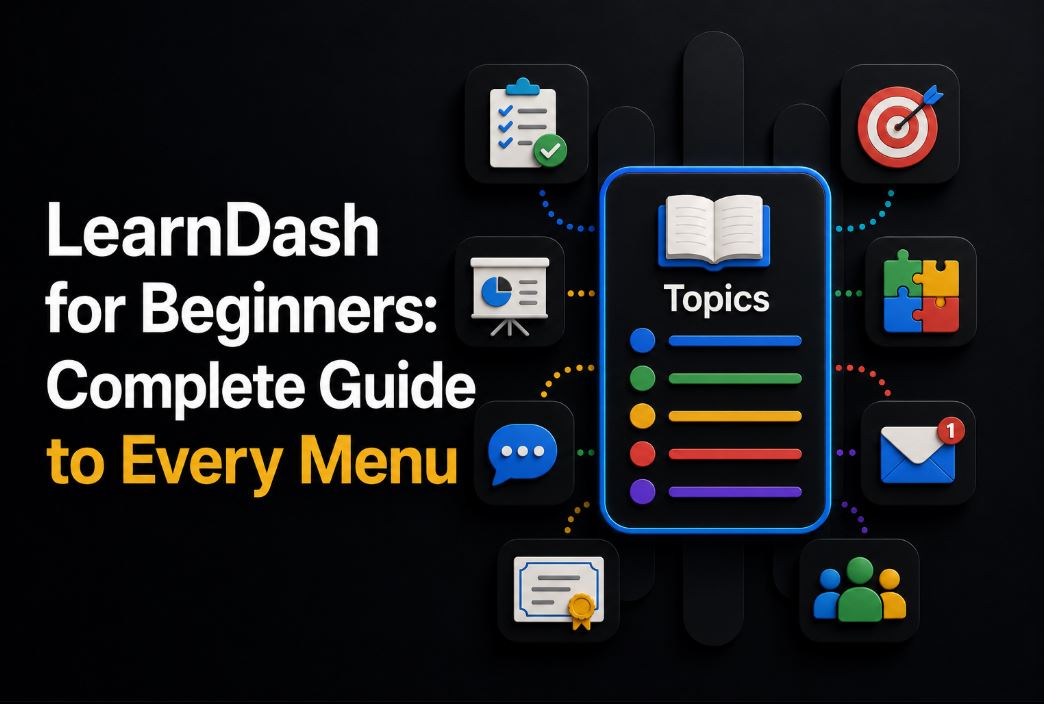
Over the past few weeks we published a full series introducing LearnDash for beginners, walking through every native menu the plugin offers and sharing practical tips along the way.
This guide pulls the whole series together in one place, in the right order, so if you are just getting started with LearnDash, or setting up your first course, you can follow the entire structure from the first click to the certificate a student receives at the end.
Remember, if you need a LearnDash Developer to deploy your online course, talk with us!
LearnDash is built around a simple hierarchy: Courses contain Lessons, Lessons contain Topics, Topics can hold Quizzes, and Quizzes are made up of Questions. On top of that structure, you have Certificates to credential your students and Groups to organize them into cohorts, classes, or teams. Understanding how these seven menus connect to each other is really the foundation of everything else you will do in LearnDash, from drip content to gamification to reporting.
Below you will find a detailed summary of each article in the series, covering what each menu does, the settings worth paying attention to, and a link to the full guide if you want to go deeper.
What You Will Find in This Guide
- The Courses menu: how to structure a course, choose an enrollment mode, and configure progression
- The Lessons menu: how modules work and which settings control video progression, assignments, and drip content
- The Topic menu: how individual classes are built and what belongs inside them
- The Quiz menu: the most detailed menu in LearnDash, covering scoring, retakes, question types, and email notifications
- The Question menu: how to organize and configure each question in your question bank
- Certificates: how to build PDF certificates and use shortcodes to pull in dynamic student and course data
- The Groups menu: how to manage cohorts, group leaders, and access permissions
1. The Courses Menu
We start where LearnDash itself starts: the Courses menu. This is where every course is created, and where its structure, sales page, and access rules come together. A course in LearnDash is really a container for lessons, topics, quizzes, and settings, and getting comfortable with this menu makes everything else in the plugin easier to understand.
The full guide covers:
- The Dashboard, which shows enrollment numbers, completion rates, quiz scores, and revenue data for the course
- The Course Page, where you write the sales angle, list learning outcomes, and explain how the course works
- The Builder, where lessons, topics, and quizzes are added and organized into the course structure
- Extend Access, used to give specific students more time without changing the course for everyone else
- Enrollment Mode options: Open, Free, Buy Now, Recurring, and Closed, including how the confusing Course Enrollment URL field actually works
- Course Progression (linear versus free form), Course Access Expiration, Requirements for Enrollment, and Course Certificates
- Course Grid Settings for displaying course boxes elsewhere on your site, and how Groups can be assigned directly to a course
Read the full guide to the Courses menu →
2. The Lessons Menu
Next comes Lessons, which we like to think of as modules inside a course. If Courses is the container, Lessons are the chapters, and each one can have its own release schedule, materials, and completion rules.
The full guide covers:
- How to create a standalone lesson and attach it to a course through the Builder
- Video Progression, which requires a student to finish a video before the lesson can be marked complete
- Assignment Uploads and Grading Type (Auto-approve versus Manually grade), including how to notify admins when a new assignment needs review
- Forced Lesson Timer, useful for compliance training and courses that need to prove a minimum number of hours
- Sample Lesson, which makes a lesson free so visitors can preview your course before enrolling
- Lesson Release Schedule, the setting behind drip content, letting lessons unlock immediately, after a set number of days, or on a fixed date
- External Lesson, for classes that happen live or in person, and the Lesson Global Settings that control categories, search, and archive pages
Read the full guide to the Lessons menu →
3. The Topic Menu
A Topic is essentially a single class inside a lesson or module, with a beginning, middle, and end around one subject. This is where most of the actual course content lives: videos, text, images, and the material a student directly interacts with.
The full guide covers:
- What should go inside a topic, and how to split a longer class into several topics if needed
- How to add community features like comments or discussion using plugins such as wpDiscuz, bbPress, or BuddyBoss
- Topic level settings: Topic Material, Video Progression, Assignment Uploads, and Topic Timer, and how these settings interact with each other
- Topic Release Schedule and the External Topic option for live or in person classes, including a practical way to share Zoom links or meeting details
- Course Grid options for displaying topic information elsewhere on your site through shortcodes
- Global Topic Settings, including Topic Categories and Topic Tags for organizing classes across a course
Read the full guide to the Topic menu →
4. The Quiz Menu
This is the longest and most detailed article in the series, and for good reason. The Quiz menu has more settings than any other part of LearnDash, since it is where you assess whether a student actually learned the material.
The full guide covers:
- The three menus inside a quiz: Quiz Page, Settings, and Builder
- Progression and Restriction Settings, including Passing Score, Restrict Quiz Retakes, and exactly how to block a student from advancing until they pass
- Quiz Saving, Quiz Completion, and Time Limit, useful for final exams and corporate training
- Display options like the Question Overview Table, showing questions one at a time versus all at once, and Custom Question Ordering
- Result Page Display, with custom pass and fail messages, and Custom Answer Feedback to turn a quiz into a learning tool instead of just an assessment
- Administrative settings such as Custom Fields, Leaderboards, Quiz Statistics, and Quiz Templates for reusing configurations across many quizzes
- Every question type available in the Builder: Single Choice, Multiple Choice, Free Choice, Sorting Choice, Matrix Sorting Choice, Fill in the Blank, Assessment, and Essay/Open Answer
- How to configure Admin and User email notifications when a quiz is completed, including the difference between the global template and the per quiz toggle
Read the full guide to the Quiz menu →
5. The Question Menu
Once you understand quizzes, it is worth taking a closer look at the Questions menu, where each individual question lives and can be configured on its own, independently of which quiz it belongs to.
The full guide covers:
- How to filter and organize a growing question bank by date, question type, and quiz
- A practical naming convention (Question Number, Module Number, Class Topic) to keep a large question bank organized across courses
- How to configure Answers, Points, Hints, and custom feedback messages for both correct and incorrect responses
- A closer look at the eight available answer types, with examples for each one
- How to reuse the same question across different quizzes using the Gutenberg sidebar
Read the full guide to the Question menu →
6. Certificates
The Certificates article explains what LearnDash certificates are, which is simply a PDF document automatically issued when a student completes a course, passes a quiz, or finishes a group, and how to build one that actually looks credible.
The full guide covers:
- How to create a certificate from scratch, and how to choose the right PDF size (Letter or A4) and orientation (Landscape or Portrait)
- Ways to make a certificate harder to forge, such as a public verification page, a digital signature, or a validation hash
- The full list of dynamic shortcodes available, including
[usermeta]for student data,[courseinfo]for course data,[quizinfo]for quiz results, and[groupinfo]for group completion - How to format dates inside a certificate, and the combination of shortcodes most commonly used in practice
- The difference between Legacy Certificates and certificates built with the Certificate Builder add-on
Read the full guide to Certificates →
7. The Groups Menu
The series closes with Groups, one of the most useful features for anyone running a school, a corporate training program, or a paid cohort. Groups let you organize students into cohorts with their own access rules, leaders, and course assignments.
The full guide covers:
- Practical examples for schools, coaching programs, and companies organizing groups by department
- Access Mode options (Free, Buy Now, Recurring, Closed), Start and End Dates, and Extend Access
- How to assign courses to a group and use Group Course Auto-enroll so students are added automatically
- Group Leaders and their permissions, including Managed Groups Auto-enrollment, Bypass Course Limits, Manage Groups, Manage Courses, and Manage Users
- Global group settings that control visibility, search, archive pages, and which post types can be protected by group based access
Read the full guide to the Groups menu →
Wrapping Up
That covers the full LearnDash structure, from the moment a course is created to the certificate a student receives at the end. If you followed the series in order, you now have a solid foundation to plan, build, and configure your own courses with confidence, whether you are running a small course on the side or a full LMS platform for a school or company.
If you would rather have a LearnDash professional set all of this up for you, or need help with a more advanced or custom implementation, feel free to get in touch.




[…] covered almost all of LearnDash’s core menus, and today we’re talking about […]
[…] Artigo original:https://learndashdev.com/learndash-for-beginners-complete-guide-to-every-menu/ […]