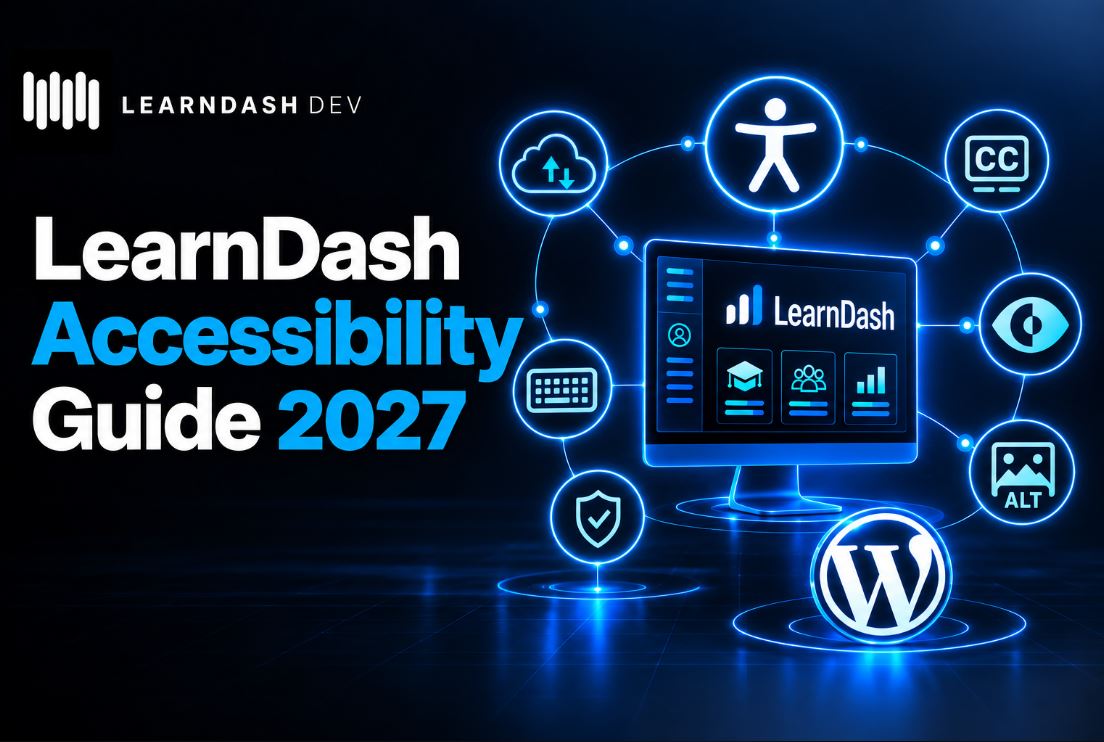
One very important topic when we talk about LearnDash development and online courses in general is accessibility.
From personal experience, it is very clear when the issue of accessibility is taken more seriously.
For example, my clients in the public sector, such as universities, often need to ensure compliance with specific accessibility standards, such as WCAG 2.2 AA, and may also be required to publish an Accessibility Statement, depending on the regulations in their country.
Regarding the accessibility statement, it may be mandatory for public institutions in certain countries and is recommended for private businesses.
It should include: the accessibility standard followed, the level of conformance, known limitations, and a contact channel for feedback. You can find more information in the W3C accessibility statement guidelines.
When it comes to small business owners and private companies, following basic accessibility recommendations is equally important. After all, according to the World Health Organization, approximately 1 in 6 people worldwide experiences significant disability.
Even from an SEO perspective, more accessible websites with better UX can benefit from several SEO best practices, as accessibility improvements often involve better navigation, clearer content, and a more organized semantic structure.
Let us take this step by step.
WCAG 2.2 (Level AA): The Technical Standard
The Web Content Accessibility Guidelines (WCAG) 2.2 were developed by the W3C with the aim of making web content more accessible to people with visual, auditory, motor, or cognitive disabilities.
For websites being developed or updated for 2027, WCAG 2.2 Level AA is a recommended target, although legal requirements may still refer to earlier versions, such as WCAG 2.1.
The main requirements and recommendations include:
- Your online course must have adequate colour contrast, ensuring that learners can read the content clearly.
- Normal text: minimum 4.5:1
- Large text (≥18pt or 14pt bold): minimum 3:1
- Essential icons, interface controls, and other non-text elements: generally minimum 3:1
- Keyboard navigation: the website must be fully functional without the use of a mouse, helping people with Parkinson’s disease, for example, or other conditions that cause hand tremors.
- Videos must include captions for prerecorded spoken content, so that people with hearing impairments can use the course. Other multimedia content may also require transcripts or audio descriptions, depending on the content.
- Images must contain an appropriate
altattribute (alternative text describing meaningful content). Purely decorative images can use an empty alt attribute. - Compatibility with screen readers (such as NVDA), ensuring that content is interpreted correctly.
- Reflow: text must support resizing up to 200% without loss of content or functionality. Content should also reflow at widths equivalent to 320 CSS pixels, without unnecessary horizontal scrolling, with exceptions for elements such as complex tables and diagrams.
- Forms must work with correct labels, clear error messages, and keyboard navigation. Errors must not rely solely on colour to be understood.
- Avoid problematic overlays, such as floating buttons or plugins that obscure important content or interfere with keyboard navigation.
- Interactive elements: WCAG 2.2 introduced additional requirements for target sizes and keyboard focus visibility. Buttons and other controls should be easy to activate, and focused elements must not be completely hidden behind fixed headers or other content.
About the Levels
Please be aware:
The most basic requirements, including essential keyboard accessibility and alternatives for non-text content.
The most commonly adopted target for accessibility compliance, covering important issues such as contrast, navigation, forms, and content presentation.
The most rigorous and difficult level to achieve, which may include requirements such as sign language interpretation for prerecorded video content and more advanced contrast and comprehension criteria.
Third-Party Content – Please Note
Even if you use third-party content, it may affect your compliance. This includes embedded videos, external plugins, SCORM tools, and similar.
This is particularly important for LearnDash websites, where additional plugins, page builders, quizzes, and external learning tools can introduce accessibility issues even when the WordPress theme itself follows accessibility best practices.
Practical Summary
Public sector
Often needs to follow specific accessibility regulations and standards, depending on the country and institution.
Private businesses
Should follow recognized accessibility guidelines, particularly WCAG Level AA, while checking which legal requirements apply to their activities and location.
In 2027, accessibility should not be treated merely as good practice. It is an important part of providing a better learning experience and can also impact contracts, reputation, and the possibility of working with public institutions and large organizations.
How to Configure Your WordPress Website for Accessibility in LearnDash Courses
In my opinion, one of the best themes for combining LearnDash courses with an accessibility focus is Kadence, as it already addresses several common issues found in WordPress themes built purely for aesthetics.
However, choosing an accessibility-focused theme does not automatically guarantee that the entire website or its courses will meet WCAG requirements.
The website design needs to be simpler and more functional, without anything too “fancy”. It is important to remember that people with visual impairments need clear information, so elements should only exist if there is a genuine need for them.
The structure must be well defined, using a correct hierarchy with headings and subheadings (H1, H2, H3, etc.), clear divisions, and more concise blocks of text.
Buttons must have descriptive text, not just “click here”, but actions such as: “buy the course”, “return to page”, “watch the lesson video”, etc.
For videos with captions, you can use YouTube, which works very well with WordPress and generates automatic captions. However, it is important to review and correct these captions, as automatic transcription may contain errors.
Images must always include appropriate ALT text when they convey meaningful information, avoid text embedded within the image, and, in the case of graphs or charts, provide a written explanation.
For navigation, everything must work with a keyboard, menus must be simple, buttons large enough to interact with comfortably, and unnecessary pop-ups avoided.
In LearnDash, focus on objective and clear questions and provide textual feedback, not only visual. This is especially important for quizzes, assessments, progress indicators, and course navigation.
And always, before launching your course, carry out tests: use a screen reader such as NVDA, and test contrast with the WebAIM Contrast Checker.
Some plugins can help with this, such as WP Accessibility and Accessibility Checker. Remember that accessibility plugins and automated tests can help identify problems, but they do not replace manual testing.
Of course, these tips are more introductory in nature. If you need a LearnDash developer to adjust or build your course with an accessibility focus, please do get in touch.