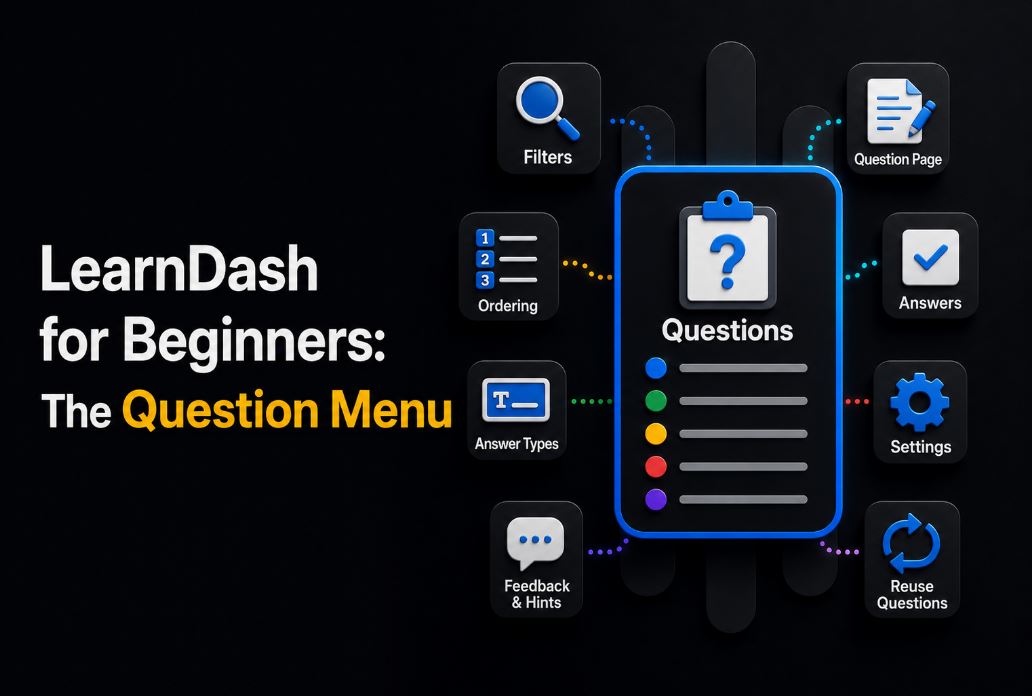
LearnDash for Beginners: the Questions Menu
In the last article, we covered the Quiz menu in LearnDash, and today we’ll go through the options in the Questions menu.
Questions, as the name suggests, are the individual questions inside a quiz, and each one can be configured separately. Following the path we’ve taken so far: we’ve covered Courses, Lessons, Topics, Quizzes, and now we’ve reached Questions.
Check out our full LearnDash guide for beginners.
The Questions Menu
In the WordPress dashboard, under LearnDash LMS > Questions, you’ll see all the questions created across all your courses so far. In the top bar, after the filter options, you’ll find the title, the question type, how many points it’s worth, which quiz it belongs to, the author, and the publish date.
Filters
As you’ll notice, questions pile up one after another, and scrolling through the page to find a specific one isn’t the most efficient approach. That’s where the filters come in.
The available filters let you search by date, question type, and quiz. This is exactly why naming everything properly in LearnDash matters so much, since it makes organization much easier. I’ll admit I’d love a filter by Lessons and Topics, but I understand the structure LearnDash has built.
A useful way to organize your questions is: Question Number – Lesson/Module Number – Class Topic.
For example: Q1-M02-Mesopotamia
With this, Q tells you it’s a question: Q1, Q2, Q3, Q4, and so on. Followed by the module or lesson (call it whatever you prefer): M01, M02, M03. And then the class topic: Mesopotamia, Impressionism, etc.
You can, but it depends on the kind of school you’re running. If you’ll have multiple courses across multiple groups, a more detailed naming structure really helps. For example:
Art-History-Q1-M02-MesopotamiaThe Question Page
On a question’s page, you’ll find the question title and description. On the right side, you’ll see all the questions grouped within the quiz, with access to the Quiz Builder. You’ll also have the option to organize questions by categories, along with several other settings.
Answers
Here you’ll see the answers for this question. If you’ve already created one and you’re editing it, you’ll see boxes with options for: correct, allow HTML, and the answer itself. You can also delete an answer, add media, or use “Move” to drag and reposition the question.
In the right-side menu, you’ll find the Answer Type box, with 8 types available, which we’ll cover shortly. There’s also a Points box, where you can define how many points each question is worth: the same value for all questions, or a custom amount per question.
A bit further down, you can add a message that shows when the student answers correctly. This is useful for explaining why that answer is correct, going beyond the standard correct/incorrect response. You can also enable a message for incorrect answers, or a specific message for each type of wrong answer.
You can also add a Hint to this question to help guide the student toward the right answer.
Template: you can save a question configuration to reuse later on other questions.
Answer Type
This is one of the most interesting parts of LearnDash, since you can choose from several types of answers.
Single Choice
The most common question type. The student sees several alternatives but can only select one answer. Ideal for testing objective knowledge when there’s only one correct answer.
Which plugin is used to create courses in WordPress?
○ WooCommerce
○ Elementor
● LearnDash
○ BuddyPress
Multiple Choice
Similar to Single Choice, but lets the student select more than one alternative. Useful when a question has multiple correct answers.
Which of these elements can exist within a LearnDash course?
☑ Lessons
☑ Topics
☐ Posts
☑ Quizzes
The student needs to mark every correct option to receive full credit.
Free Choice
The student types a short answer into a text field. LearnDash compares the typed answer against the correct answers entered by the instructor. Useful for testing specific terms, names, or concepts.
Which LMS plugin are we studying in this course?
Answer:
LearnDashYou can register multiple accepted variations, such as: LearnDash, learndash, Learn Dash.
Sorting Choice
The student needs to arrange items in the correct order. Widely used for processes, sequences, and steps.
| Shuffled items | Correct order |
|---|---|
| Create Lessons Create the Course Add Quizzes Publish |
Create the Course Create Lessons Add Quizzes Publish |
Matrix Sorting Choice
The student needs to match items from one column with items from another. Works like an association exercise.
| Element | Function |
|---|---|
| Course | The complete course |
| Lesson | The main class |
| Topic | A subdivision of the lesson |
| Quiz | The assessment |
The student needs to make the correct matches. Excellent for definitions, concepts, terminology, and translations.
Fill in the Blank
The student fills in blanks within a sentence. Unlike Free Choice, the answer is inserted directly within the context of the question.
The plugin used to create courses in WordPress is {LearnDash}.
The student sees: “The plugin used to create courses in WordPress is ______.”
Another example: “A course can contain Lessons, Topics, and ______.” Answer: Quizzes.
Assessment
A question based on evaluation or scoring, with no right or wrong answer. Each answer is worth a number of points set by the instructor. Widely used for profile tests, self-assessments, diagnostics, and personality questionnaires.
What’s your level of experience with WordPress?
○ Beginner (1 point)
○ Intermediate (2 points)
○ Advanced (3 points)
At the end, the result is calculated by adding up the points.
Essay / Open Answer
The student answers freely in a long text box. The answer isn’t automatically graded by LearnDash, and stays pending until an instructor manually grades it.
Explain the difference between Lessons and Topics in LearnDash.
The administrator reads the answer, approves or rejects it, and sets the score manually. This is the ideal type for assignments, essays, case studies, open-ended responses, and more advanced certifications.
Question Settings
Here there’s only one option: Associated Quiz, where you select which quiz this question belongs to.
Yes. If you’re using Gutenberg, just go to the right-side column and click on Questions. If the column is hidden, click the icon in the top right corner (a divided square, near the save button): a panel will appear with several options, including one to reuse existing questions in other quizzes.
Wrapping Up
And that wraps up our look at how questions work in LearnDash, completing the full tour of all the menus we’ve covered in this series. If you’re looking for a LearnDash professional to customize your course, feel free to get in touch.